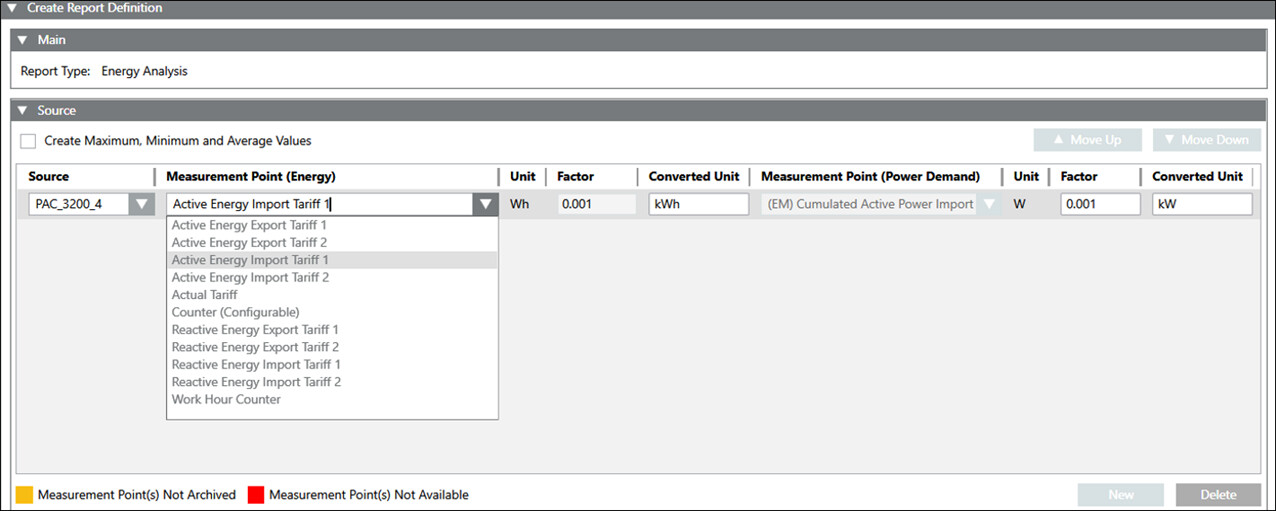
You have selected the Energy Analysis report type for configuration.
The Report Definition configuration page displays.
In the Source expander, select the Create Maximum, Minimum andAverage Values check box.
In the Source expander, drag-and-drop Powermanager [System] or [Area] or [Sector] or [Device] or click New to add a source. NOTE: Skip step 4 and proceed directly to step 5 when adding the source using the drag-and-drop method.
Select a source from the Source drop-down list for which the report needs to be generated.
Enter values into the following columns: - Select the required measurement point for which the report needs to be generated from the drop-down list under the Measurement Point(Energy) column. NOTE: You can configure only one device and generate a Energy Analysis report. - Unit - Factor - Converted Unit Select the required measurement point for which the report needs to be generated from the drop-down list under the Measurement Point(Power Demand) column. - Unit - Factor - Converted Unit
Click Save. NOTE: If the selected measurement point is not archived, a warning message will be displayed. You can save the report definition with warning. However, if the measurement points are not archived, the generated reports will not have any values.
The Save Object As dialog box displays.
Enter a name and description and click OK.
The Energy Analysis report definition is configured.
 .
.