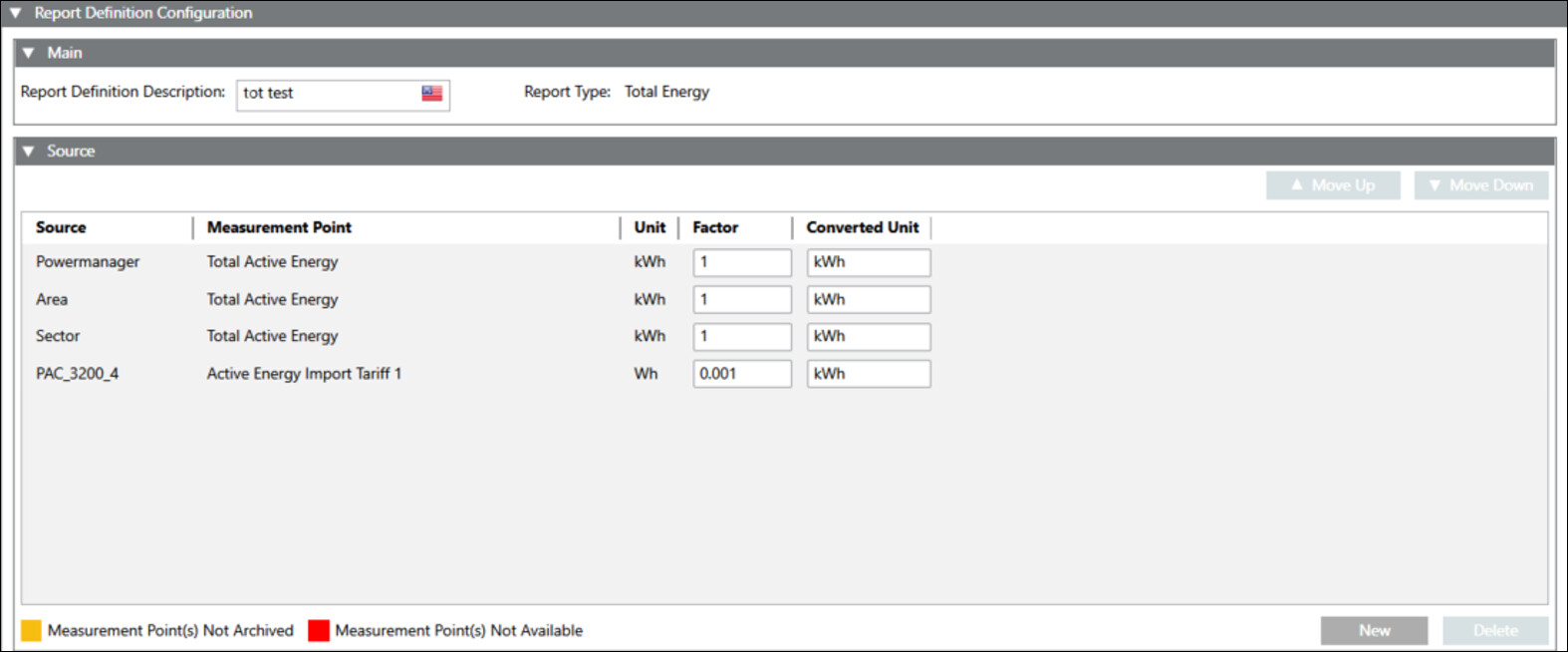
You have selected the Total Energy report type for configuration.
The Report Definition configuration page displays.
In the Source expander, drag-and-drop Powermanager [System] or [Area] or [Sector] or [Device] or click New to add a source. NOTE: Skip step 3 and proceed directly to step 4 when adding the source using the drag-and-drop method.
Select a source from the Source drop-down list for which the report needs to be generated. NOTE: You can add multiple sources and generate a Total Energy report.
Enter values into the following columns: - Select the required measurement point for which the report needs to be generated from the drop-down list under the Measurement Point column. - Unit - Factor - Converted Unit
Click Save. NOTE: If the selected measurement point is not archived, a warning message will be displayed. You can save the report definition with warning. However, if the measurement points are not archived, the generated reports will not have any values.
 .
.