Create Virtual Device Type
- In System Browser, select Application View > Powermanager.
- Select Virtual Device Configuration tab.
- Navigate to Device Type Configuration expander > Existing Device Type expander.
- Click Create New.
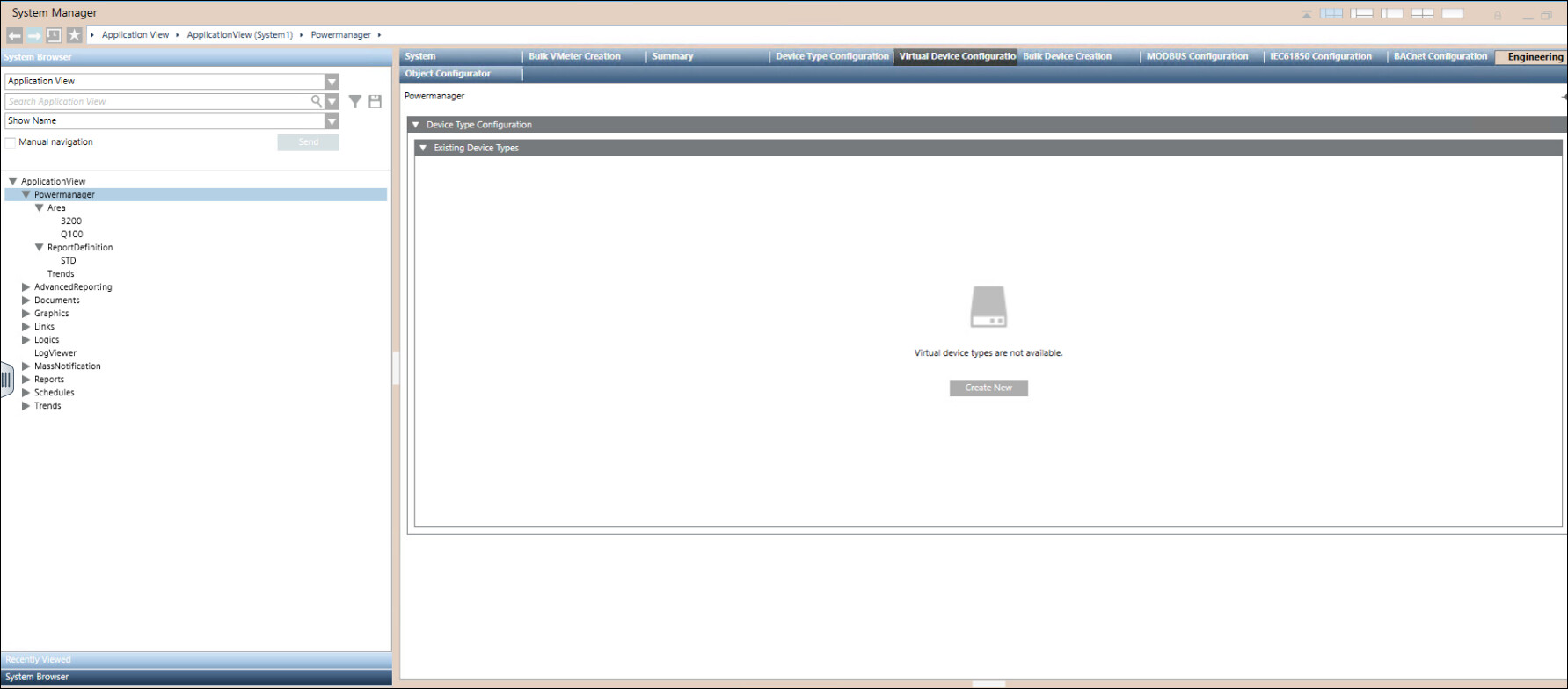
- Navigate to Group Mapping expander.
- Drag and drop the node from Application View to the Measurement Point Name and select Group from the dropdown list.
- Description and Data Type will be auto populated based on the selected measurement point.
- For new measurement point, click New and enter Measurement Point Name.
- Description, Data Type, Group will be auto populated.
NOTE: You can create up to 50 measurement points. - Click Next.
- In the Measurement Points expander, configure parameters Unit, Display, Archive and Alarm.
In the virtual device instance creation page, if you want to configure the Converted Unit, the Unit values for measurement point/group in this section must match exactly as shown in the image below, as they are case-sensitive. - By default, Subscribe will be selected.
- Select the measurement point and enable the Alarm checkbox to proceed with alarm configuration.
- In Alam Configuration expander, select the Alarm Type and configure parameters Range, Event Test, and Normal Test.
- In Favorites, configure parameters Measurement Point, Parameter, Duration and Interval.

The charts configured in the Favorites expander can be viewed in the Flex Client Energy management tab as default configuration. You can modify the configuration in the Energy management tab as needed.
- Click Next.
- In Feature expander, Power period radio button will be enabled by default, if any of the measurement point group is selected as power period.
- In Default Measurement Points expander, configure parameters Energy and Power.
NOTE 1: Select Counter group for Active Energy and Reactive Energy measurement points. Select Power group for Active Power and Reactive Power measurement points.
NOTE 2: To configure Sankey report for virtual device, it is mandatory to configure Default Measurement Points. - Navigate to Additional Inputs.
- By default, Library Name Field is available. If required, you can drag and drop Library Name.
- Provide the Device Type Name and Device Type Description.
NOTE: By default, device type is created with Library Name under project node. Library Name cannot be edited. - Click Create Device Type.
- Click Ok.
- Device type is created successfully.